Digital business cards built to move fast

Share a polished personal card without handing someone paper.

HandleMe is a SwiftUI iPhone app for designing your own digital business card, sharing it by QR, image, or file, and saving the cards you receive into a clean searchable vault. It keeps the flow personal and lightweight while still handling real-world edge cases like oversized QR payloads and dark-mode presentation.

SwiftUI iPhone app

Create, preview, theme, scan, export, and collect cards in one native flow.

Actual app screens Light and dark mode
HandleMe welcome screen in light mode with the create card onboarding state.
Welcome light
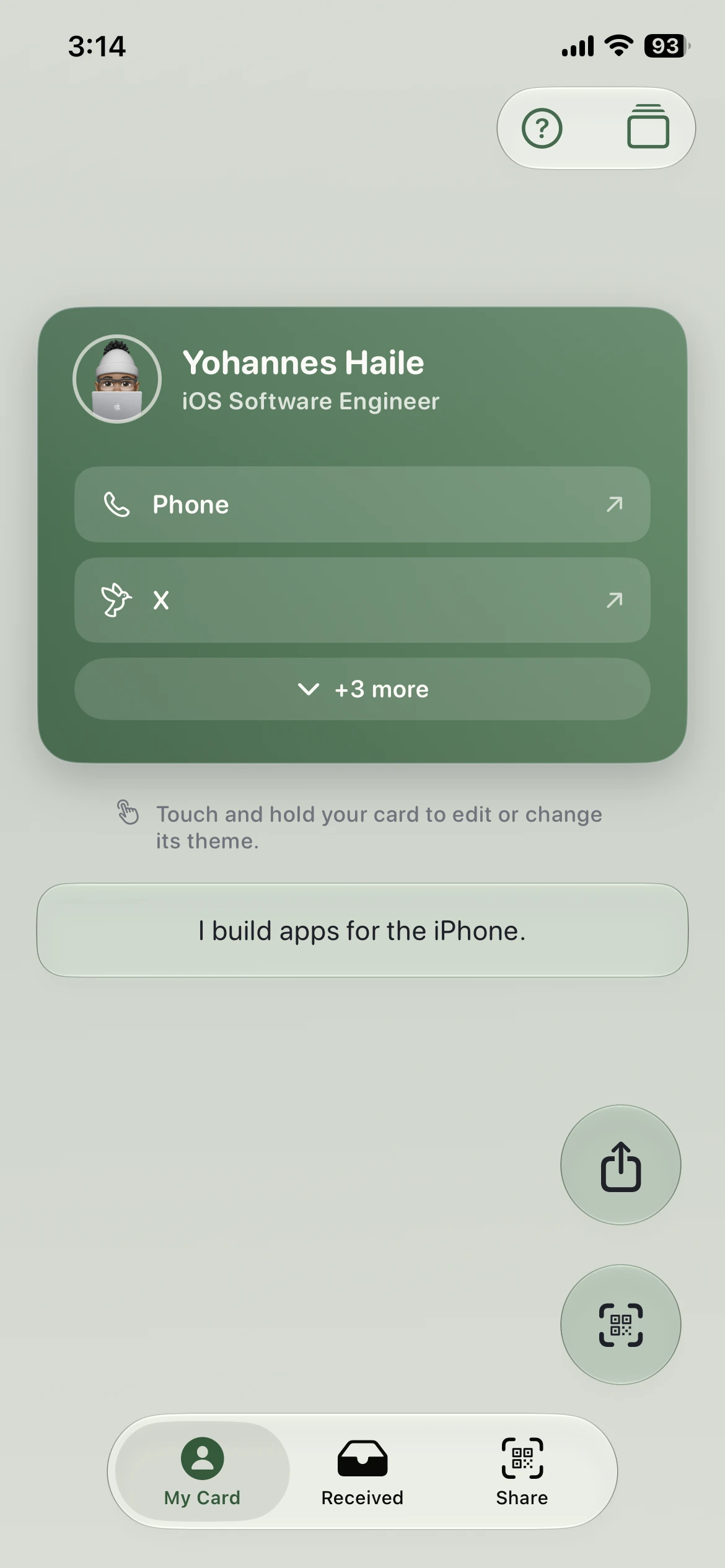
HandleMe my card screen in dark mode showing a profile card with links and editing actions.
My Card dark
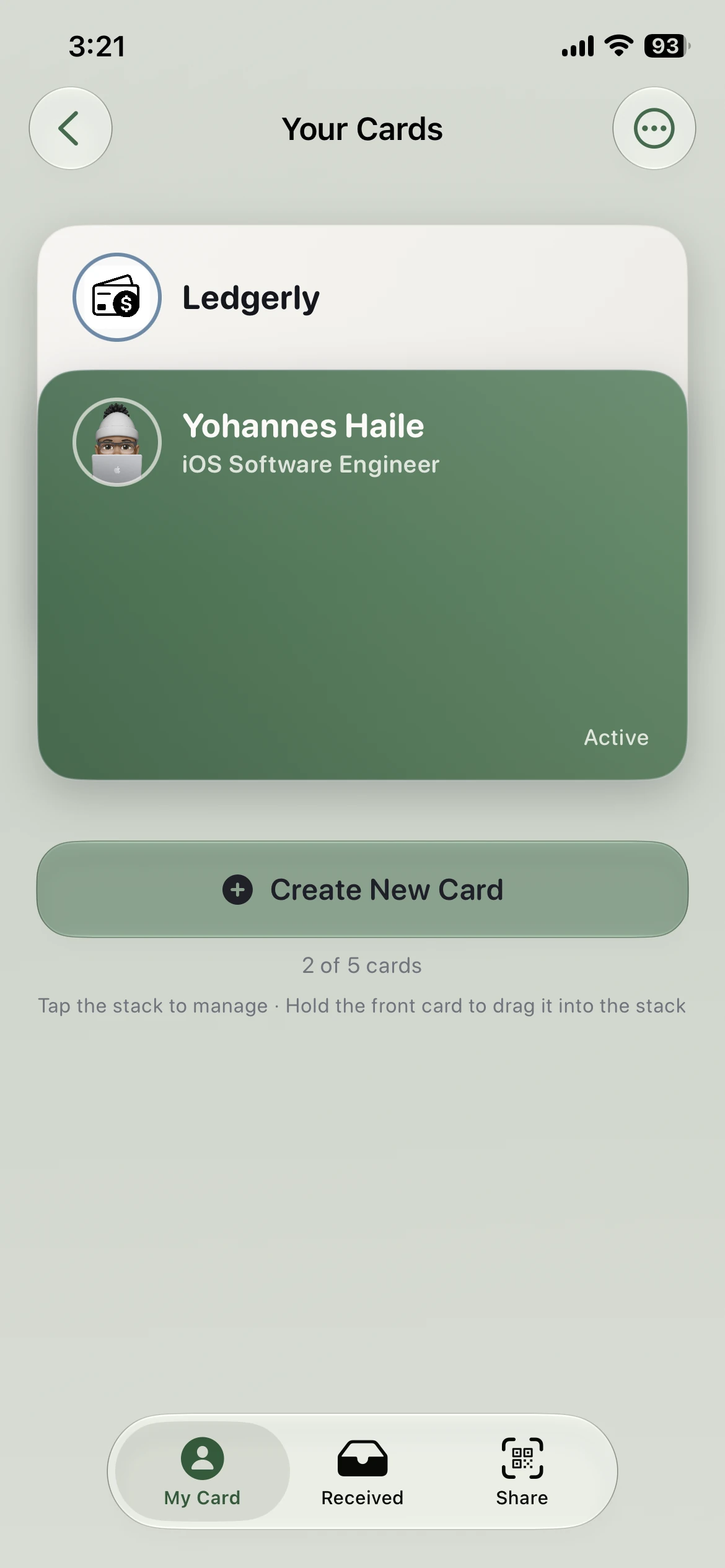
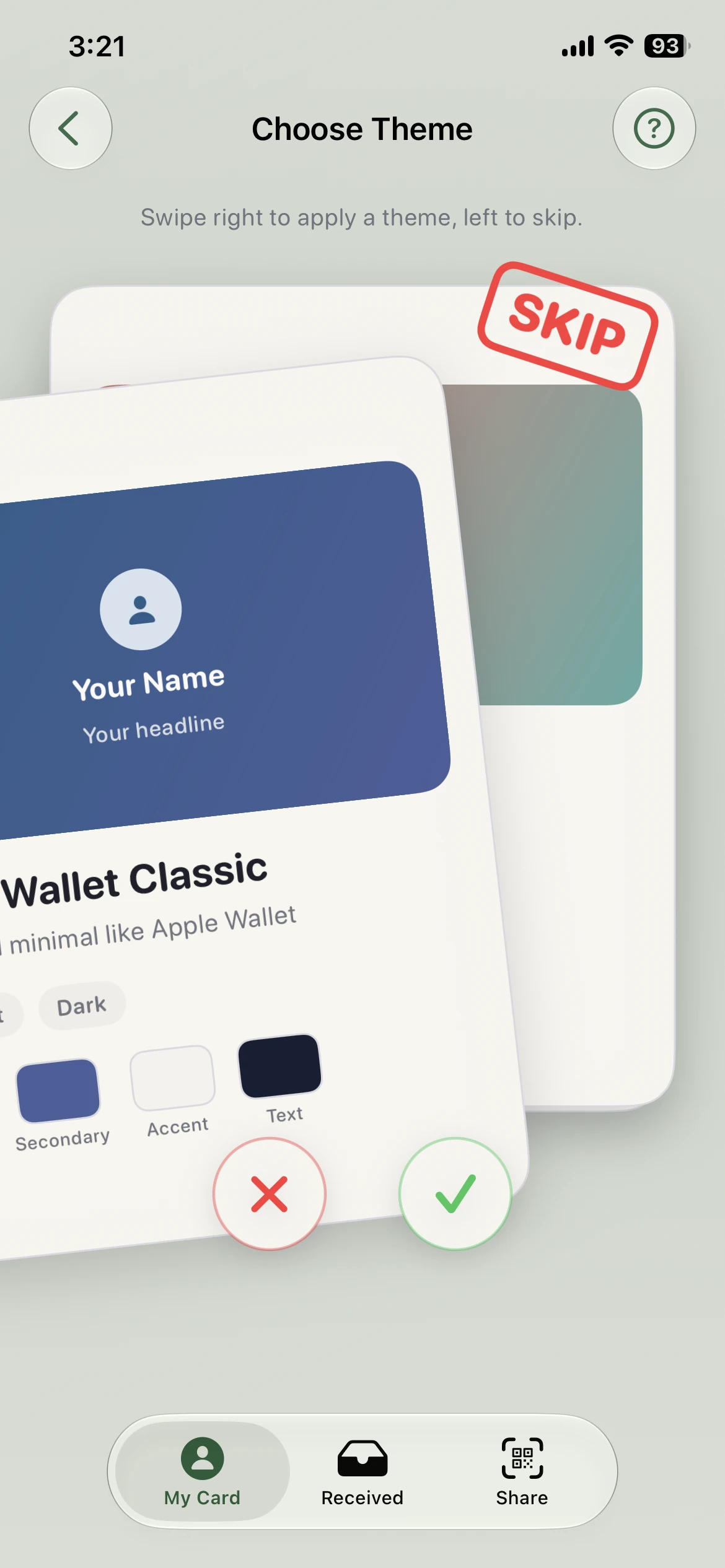
  • Themes Preset gradients and card styles
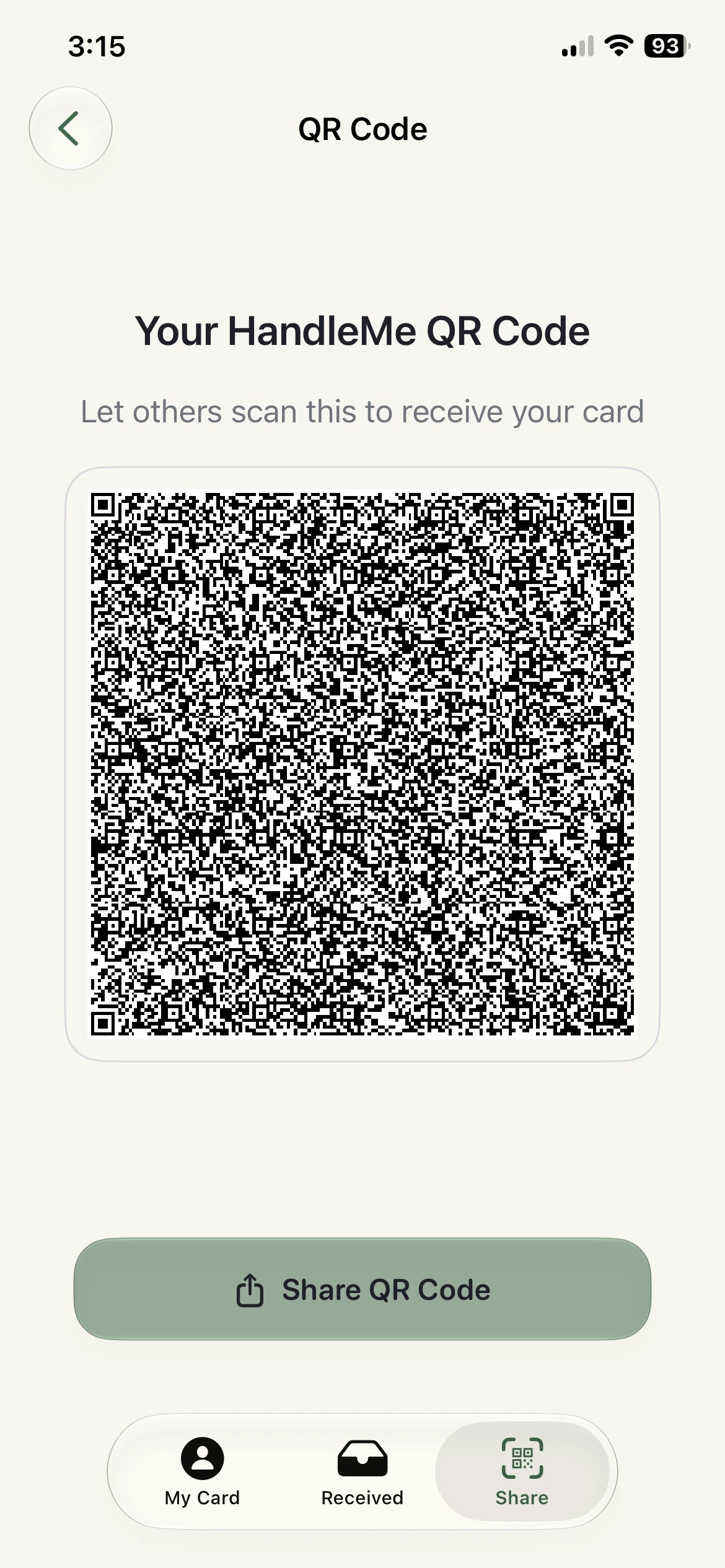
  • Transfer QR first, image and file when needed
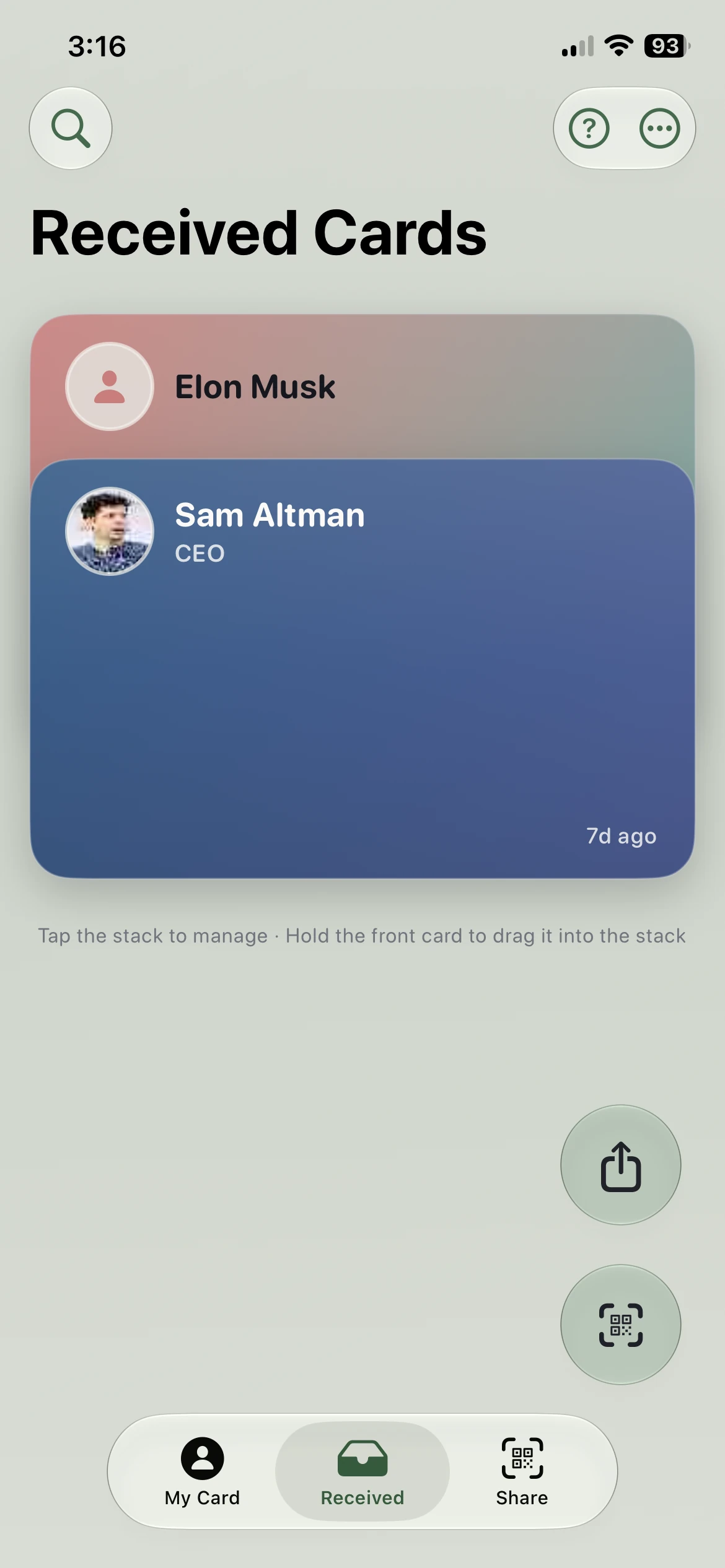
  • Collection Searchable received-card vault
Create Photo, headline, bio, and links
Preview See updates as you edit
Share QR, image, or file
Receive Save scanned cards to your vault

Screen Tour

Three core surfaces keep the whole exchange clear.

HandleMe revolves around a simple loop: build your card, share it cleanly, then keep what you receive. These are the actual app screenshots in light and dark mode for onboarding, card editing, and QR sharing.

Screen 01

My Card Studio

Light + dark
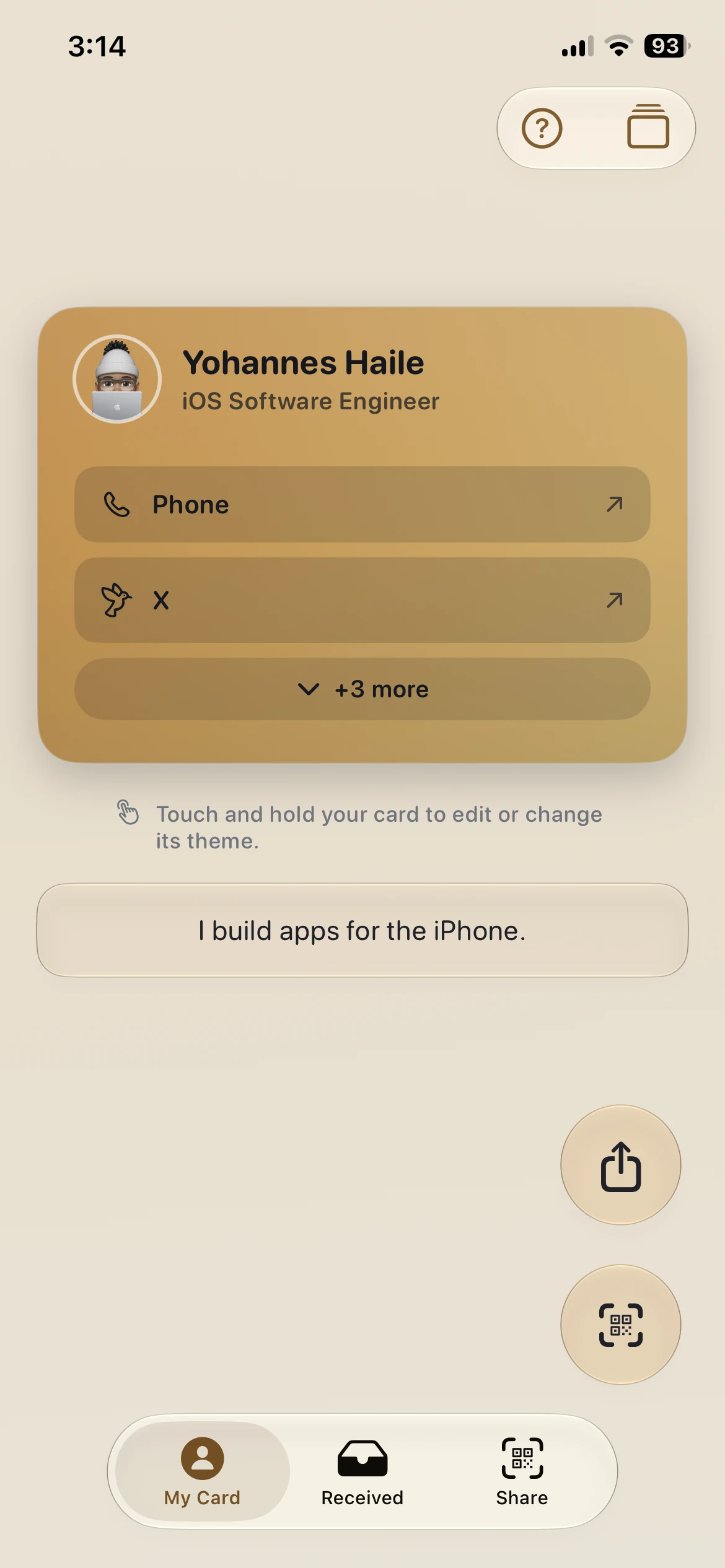
HandleMe my card screen in light mode showing a profile card, edit profile button, and change theme action.
Light mode
HandleMe my card screen in dark mode showing the same profile card layout with link buttons and theme controls.
Dark mode

Edit profile details, switch themes, and keep your card looking polished in both system appearances.

Screen 02

Welcome State

Light + dark
HandleMe welcome screen in light mode introducing profile setup, social links, and QR or AirDrop sharing.
Light mode
HandleMe welcome screen in dark mode with the create your card onboarding prompt and bottom tab bar.
Dark mode

The onboarding state explains the product loop immediately: complete your profile, add links, then share by QR or AirDrop.

Screen 03

Share Flow

Light + dark
HandleMe share screen in light mode showing the QR code card, scan QR button, and alternative sharing section.
Light mode
HandleMe share screen in dark mode showing the QR code card, receive cards section, and scan QR call to action.
Dark mode

The share tab makes QR transfer the default while still keeping the receive flow and alternative sharing paths close by.

Feature Tour

Built around real contact exchange, not novelty.

The feature set stays focused: identity, presentation, transfer, and collection. Everything on the page comes directly from the README and the native app flows.

Profile

Create your card with photo, headline, bio, and links

Personal details stay editable so your card can shift from a simple intro to a richer professional profile.

Preview

See the card update while you edit

The app keeps a live preview in the flow so you can tune presentation before saving or sharing.

Themes

Multiple presets with gradients and style variation

Theme presets like modern gradient, forest green, dark mode, and more let the card feel personal without extra setup.

QR Sharing

Compact payloads tuned for scan reliability

Card data is compressed and compacted for QR transfer, with graceful trimming when payload size gets too large.

Fallback Export

Share as image or file when full fidelity matters

If a QR code cannot carry everything cleanly, the card can still move as a rendered image or exportable file.

Vault

Keep received cards in a searchable saved collection

Scanned cards can be reviewed, stored, searched by name or detail, and cleared when they are no longer needed.

Transfer Reliability

The product is designed for sharing that still works under pressure.

HandleMe does not assume every card payload will fit perfectly in a QR code forever. It compresses the data, reduces optional weight when necessary, and still gives you image and file-based exits when you need the full version.

01

QR stays the default path

Compact payload keys and image resizing keep the main sharing flow fast enough for real in-person handoff.

02

Fallbacks preserve the exchange

When payload size pushes QR capacity, the app can still share as an image or file instead of failing the interaction.

03

Received cards remain easy to keep

Saved cards live in a dedicated vault with review, search, and delete controls so your collection stays usable over time.

See It In Motion

Watch the product loop from profile creation to share and receive.

The README already points to a short demo video, and this page is structured to swap in real screenshots later without reworking the layout.